
Watch Premier League on Every TV: Multi-Room IPTV Setup 2026-27
August 12, 2026 · 8 min read
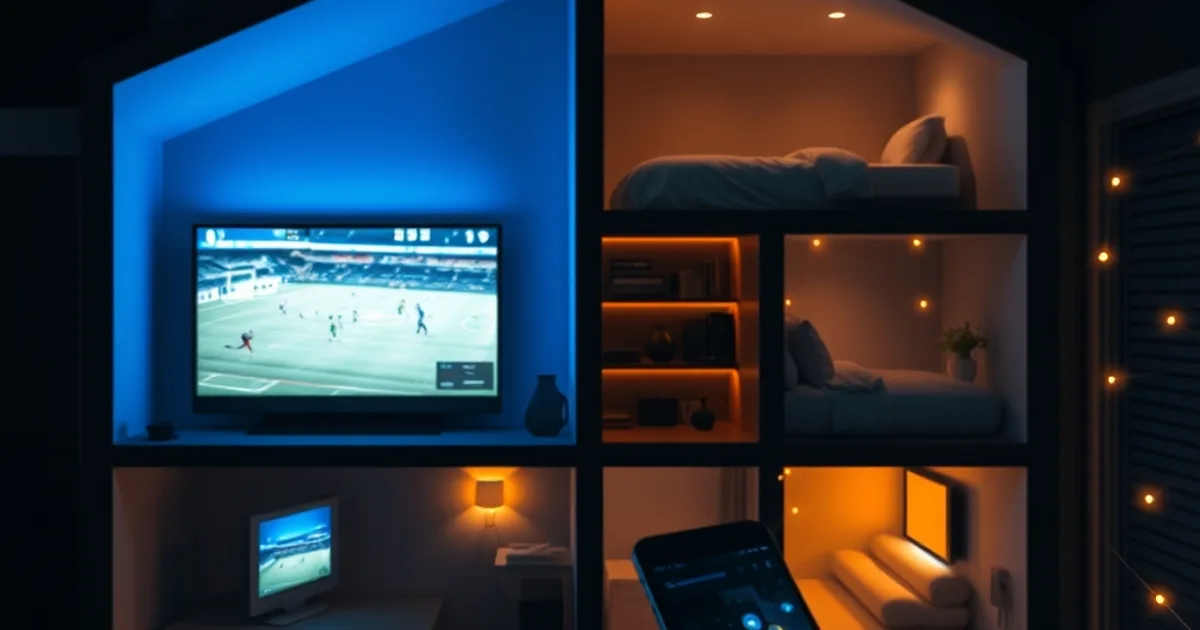
The Premier League 2026-27 season kicks off on August 22, 2026 — just ten days from now — and this is exactly the window when households scramble to get every TV in the house ready for matchday. If you've got one person watching the early kickoff in the living room, another catching a different fixture in the bedroom, and someone else checking a score on their phone during a commute, a single-device setup won't cut it anymore.
Most IPTV guides online fall into one of two camps: generic "how to set up multiple devices" tutorials that never mention football at all, or Premier League-specific guides that assume you're watching on one screen. Neither answers the real question a football household has in August: how do I get simultaneous streams running smoothly in every room, without one person's buffering ruining another person's match, and without accidentally logging everyone out mid-game.
This guide walks through the actual mechanics of a multi-room Catchon TV setup — how many streams your plan actually allows, what hardware works best in which room, how to configure your network so 4K doesn't choke on a crowded Saturday, and how to avoid the login conflicts that trip up most households the first time they try this.
Why Multi-Room IPTV for Premier League 2026-27
The 2026-27 fixture list means more overlapping kickoffs than a casual viewer expects. Saturday's 3pm blackout window aside, the league regularly schedules early kickoff, late kickoff, and a Sunday slate that can all land on the same weekend — and with expanded midweek rounds during the League Cup and European weeks, it's common for two Premier League-adjacent matches to be live at the same time on different channels.
A single-device household ends up negotiating: does the match go on the big screen, or does the football fan lose out to whoever got there first with a different show? Multi-room IPTV removes that friction entirely. Everyone watches what they want, where they want, at the same time — the living room stays on the main broadcast while a second stream runs upstairs or on a tablet in the kitchen.
The ten-day window before kickoff is also the cheapest time, in terms of effort, to get this right. Waiting until the first matchday to discover your plan only supports one active stream, or that your router can't handle two 4K feeds at once, means troubleshooting during the match instead of before it.
Not sure how many streams your household actually needs for matchday?
Check Your Catchon TV Plan: How Many Simultaneous Streams Do You Get?
Before buying or reconfiguring any hardware, confirm how many devices your current Catchon TV plan allows to stream at the same time. This is the single most common point of confusion in multi-room setups — people assume that because they installed the app on four devices, all four can play simultaneously, when the plan itself may cap concurrent streams lower than that.
Check this from your account area or ask directly — see the subscription guide for a full breakdown of what each plan tier includes: /blog/catchon-tv-subscription-guide. If your household regularly wants two or three rooms live at once during matchday, it's worth confirming your concurrent-stream allowance now rather than finding out when a second screen refuses to connect five minutes before kickoff.
It's also worth deciding, as a household, which rooms actually need football access versus which just need general viewing. Not every screen needs to be football-ready — prioritizing the rooms where people actually watch matches keeps your setup simpler and avoids paying for capacity you won't use.
Hardware You'll Need: Fire Stick, Smart TV, Android TV Compatibility
Multi-room doesn't mean identical hardware in every room — Catchon TV runs across a mix of device types, and the right pick per room depends on what's already installed and how much control you want. A Fire Stick is the easiest drop-in for a secondary bedroom or guest room TV that doesn't have smart functionality built in; full setup steps are covered in the Fire Stick guide: /blog/catchon-tv-firestick-setup.
For the main living room screen, a native Smart TV app (Samsung or LG) avoids an extra dongle entirely and tends to give the smoothest playback since there's no HDMI pass-through device in the chain. If you haven't set that up yet, the Smart TV installation guide walks through both brands: /blog/install-catchon-tv-smart-tv-samsung-lg.
Android TV boxes are the flexible middle option — useful in a room where you want more app customization or you're mixing IPTV with other streaming services. Mobile devices round out the setup for anyone checking scores or watching a second match away from a TV entirely. The practical rule: pick the simplest device that already exists in that room before buying anything new.
Step-by-Step Setup: Install on Fire Stick, Smart TV, and Mobile
Start with the main TV — usually the living room, since it's where the household defaults to for the biggest matches. Get that device fully installed, logged in, and tested with a live channel before touching any other room. This gives you a known-good baseline to compare against if a secondary device has issues later.
Move to the second device next, and install it while the first stream is still running. This is deliberate: it tests exactly the scenario you'll face on matchday, where multiple streams need to run at once, rather than testing each device in isolation and discovering conflicts only when it counts.
Repeat for each additional room or mobile device, checking after each new install that the previous ones are still playing cleanly. If a stream on an already-working device drops the moment you add a new one, that's a strong signal you've hit your plan's concurrent-stream limit rather than a technical fault — go back to the plan check in the section above before assuming something's broken.
Once everything is installed, log out of and back into any device you don't use daily. IPTV sessions can occasionally hold a stale connection open, and a clean login on each device the week before kickoff avoids ghost sessions eating into your concurrent-stream count.
Network Optimization: Bandwidth, Router, and 5GHz for Smooth 4K on Multiple Screens
Running two or three streams at once — especially if any of them are 4K — puts real load on a home network, and this is where most multi-room setups actually fail, not on the IPTV side. The single most effective fix is moving every streaming device onto your router's 5GHz band instead of 2.4GHz. 5GHz carries far more bandwidth at close range and suffers much less interference from neighbors' networks, which matters when multiple screens are pulling video simultaneously.
Wired connections beat Wi-Fi whenever it's practical. If your main living room device is anywhere near the router, an Ethernet cable removes an entire category of instability — no signal drop, no competing devices, no interference. For rooms where wiring isn't realistic, keep the device close to the router or consider a mesh extender rather than relying on a weak signal at the edge of range.
For a deeper breakdown of codec choice, device specs, and how bandwidth requirements scale with resolution, see the full setup guide: /blog/4k-iptv-streaming-setup-device-codec-speed. And if streams are stuttering specifically at matchday peak times rather than throughout the day, that's often an ISP throttling pattern rather than a home network issue — covered in detail here: /blog/fix-isp-throttling-catchon-tv.
As a rule of thumb, don't run more simultaneous 4K streams than your household actually needs live at once. If one room is just following text commentary or a second screen, dropping that device to a lower resolution frees up meaningful bandwidth for the rooms that matter most on a given matchday.
Test Before Kickoff: Verify Each Room Streams Without Freezing
Don't wait for August 22 to find out whether your setup holds up. Run a full dress rehearsal at least a couple of days before the season starts: turn on every device you plan to use simultaneously, play a live channel on each, and let them run together for the length of a real match — roughly two hours. Short tests hide problems that only appear once a stream has been running for a while.
Watch specifically for buffering that appears only when a second or third device joins, rather than from the start. That pattern points to bandwidth contention rather than a problem with any individual device or the service itself, and it's fixable with the network changes above rather than a support ticket.
If everything runs cleanly during the test, resist the urge to add more devices right before kickoff. Matchday itself is not the time to test a fourth room for the first time — do that on a quieter weekend once the core setup has proven itself.
Ten days to kickoff — get every room ready before the Premier League returns on August 22.
Avoid Stream Conflicts: Managing Logins Across Devices on Matchday
The most common matchday complaint in multi-room households isn't picture quality — it's someone getting logged out mid-match because another device signed in and pushed them off. This almost always traces back to exceeding the concurrent-stream limit on the plan, not a fault with any single device.
Agree on a household routine before the season starts: which devices are the "core" matchday screens, and which are occasional extras. If a visiting relative or a kid's tablet needs occasional access, log it in only when needed and out again afterward, rather than leaving every device permanently signed in and competing for the same stream slots.
If conflicts keep happening despite following the plan's stream limit, it's worth revisiting whether your current tier still matches how your household actually watches now that the season's underway — see the subscription guide for tier details: /blog/catchon-tv-subscription-guide. A short conversation before the next big fixture is easier than troubleshooting during one.
Frequently asked questions
How many devices can stream Premier League matches at the same time on Catchon TV?
This depends on your specific plan's concurrent-stream allowance, which varies by tier. Check your account details or ask directly before matchday so you know exactly how many rooms can be live simultaneously.
Do I need the same device type in every room for multi-room IPTV?
No. Catchon TV works across Fire Stick, Smart TV apps, Android TV boxes, and mobile — you can mix device types room by room based on what's already installed rather than standardizing on one.
Why does my stream buffer only when a second TV joins?
This is almost always a bandwidth or Wi-Fi contention issue, not a fault with the service. Moving devices to the 5GHz band, wiring the main TV via Ethernet where possible, and avoiding more simultaneous 4K streams than your connection can handle usually resolves it.
Should I set everything up on kickoff day itself?
No — test the full multi-room setup at least a couple of days before August 22, running all planned devices together for the length of a real match, so any issues surface while there's still time to fix them.
What causes a device to suddenly get logged out during a match?
This typically happens when another device signs in and exceeds the plan's concurrent-stream limit. Agreeing on which devices are core matchday screens, and logging occasional-use devices out when not needed, prevents this.
Read next: the pricing page or the FAQ.