
Stream Catchon TV on Your Phone: iOS & Android Setup
August 7, 2026 · 8 min read
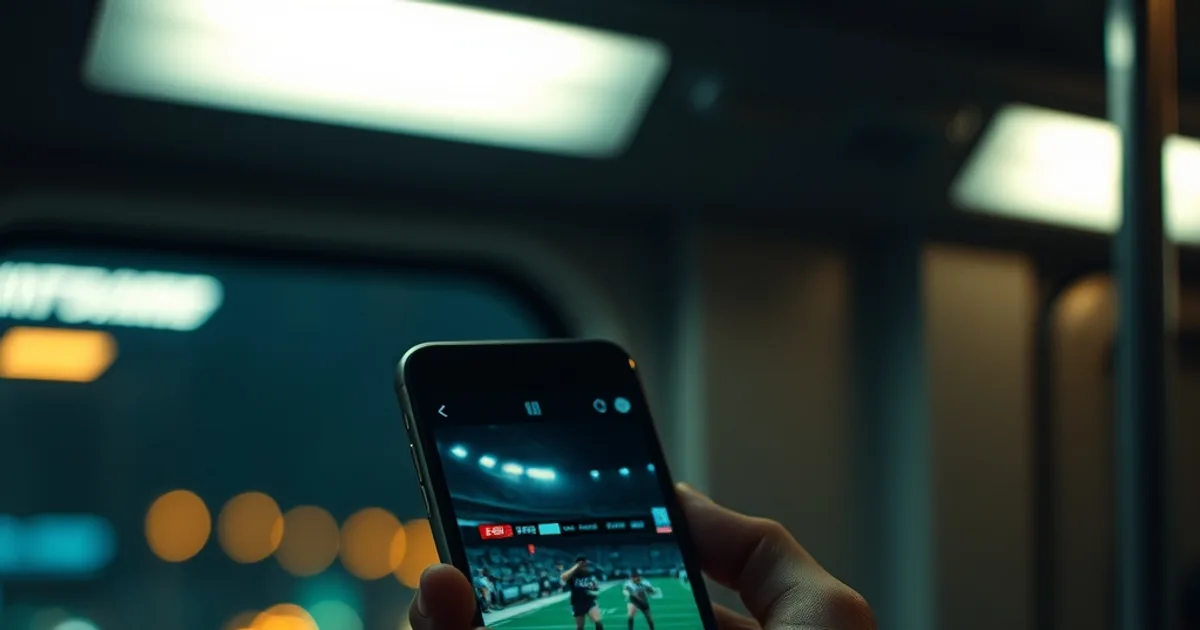
Your Catchon TV subscription isn't tied to a single screen. If you've only ever watched on a Fire Stick or a Smart TV, your phone is probably the most underused device in your setup — and it's the one you'll actually have with you on a train platform, in a stadium parking lot, or on a break at work.
This guide is written specifically for Catchon TV subscribers, not IPTV in general. We'll walk through getting your Catchon credentials working on an iPhone or Android device, which third-party player apps behave best with Catchon's stream format, how much mobile data you'll actually burn, and what to do when playback stutters or an app refuses to open.
August is peak mobile-IPTV season for a reason: back-to-school travel has people watching from buses, dorms, and airports; the NFL preseason is already underway and the real season kicks off in September; college football's Week 0 lands August 29 with Week 1 following September 3. If any of that is happening somewhere you don't control a TV, this is the setup that gets you watching anyway.
Why Mobile IPTV Matters: Watch Catchon Anywhere
A living-room box assumes you're in the living room. Mobile IPTV removes that assumption. Commuters catch the first half of a match before they're even at their desk. Travelers keep their channel lineup intact from a hotel room instead of hunting for a lobby TV. Parents watching a toddler at the park don't have to miss kickoff.
The current calendar makes this especially relevant. College football preseason camps are wrapping up, the NFL preseason slate is running through late August, and fall sports scheduling means more live windows overlapping with work and school hours than at any other point in the year. A phone is the only screen guaranteed to be within reach during all of them.
None of this requires a different Catchon subscription or a second account — the same login that works on your Smart TV or Fire Stick authenticates on mobile. What changes is which app you use to open the stream, and that choice matters more on mobile than on any other device, which is what the next few sections cover in detail.
Not sure which app fits your phone? Ask before you install anything.
iOS Setup: Download, Authorize & Stream
Catchon TV doesn't ship its own branded app in the App Store — like most IPTV services, it works through a third-party IPTV player that you point at your Catchon credentials or playlist URL. On iOS, the two most reliable choices are IPTV One and GSE Smart IPTV (Smarters Pro's iOS build is more limited than its Android counterpart, so we'd steer you toward IPTV One first on iPhone).
Install the player from the App Store, open it, and choose the option to add a service via 'Xtream Codes' login (username, password, server URL) rather than a raw M3U link where possible — it authenticates faster and keeps your EPG (program guide) in sync automatically. Your Catchon account credentials are the same ones you use on desktop or your TV box; if you don't have them to hand, they're in your original Catchon TV order confirmation.
One iOS-specific quirk worth knowing: Apple's background app refresh settings can suspend the player when you switch to another app mid-stream, which is why playback sometimes has to reload after a phone call or a notification banner. Leaving Background App Refresh enabled for your chosen player (Settings > General > Background App Refresh) reduces how often this happens.
Once the account is added, browse or search for a channel and give it 10-15 seconds on first launch — that initial handshake is usually the slowest part of the whole process on cellular.
Android Setup: Installation, M3U Import & EPG Sync
Android gives you more flexibility because Google Play carries both Smarters Pro (usually branded as 'IPTV Smarters Pro') and IPTV One, and both handle Catchon's Xtream Codes login cleanly. Install either from the Play Store — sideloading an APK isn't necessary and we'd avoid it, since it skips Play Protect's malware scanning.
During setup, select 'Login with Xtream Codes API' and enter your Catchon username, password, and the server address exactly as provided. If you were instead given a plain M3U playlist URL, use the 'Load from URL' option — either method pulls the same channel list, but the Xtream Codes login also syncs your EPG so program times display correctly instead of showing blank guide data.
Android's battery optimization is the equivalent of iOS's background refresh issue: some manufacturers (Samsung, Xiaomi, and Huawei in particular) aggressively kill background processes to save power, which can drop a stream if you lock the screen mid-match. Go to your player app's battery settings and disable optimization for it, or the stream may not resume properly after the screen turns off.
If you use both a phone and a tablet, you can add the same Catchon credentials to a second install of the player app — most IPTV providers, Catchon included, support a limited number of simultaneous connections per account, so avoid running the same login on two devices at the exact same time.
Best Apps for Catchon TV: Feature & Stability Comparison
Not every player app treats Xtream Codes streams identically, and the differences show up most on mobile where screen size and touch controls matter. IPTV One tends to have the cleanest EPG layout and the most reliable Xtream Codes handshake on both iOS and Android, which makes it our default recommendation for Catchon subscribers who just want something that works without tinkering.
Smarters Pro (Android) is a close second — its catch-up and multi-screen features are strong, though its iOS version lags behind in stability and is the reason we recommend IPTV One first on iPhone specifically.
Kodi with an IPTV Simple Client add-on is the most customizable option but requires manually configuring the M3U URL and EPG XML link yourself, which is more setup than most mobile viewers want. It's worth it if you're already a Kodi user for other media, but not a good starting point if this is your first time setting up an IPTV player.
For a broader breakdown of how these players compare feature-by-feature outside the Catchon-specific context, see our full guide: /blog/iptv-player-comparison-tivimate-smarters.
Bandwidth & Data Requirements: 4G/5G vs WiFi
Mobile data is the main constraint most people run into before anything else does. A stable SD stream generally needs a sustained connection in the low single-digit Mbps range; HD pushes that higher, and a 4K channel will consume noticeably more data per hour than either — enough that watching a full match in 4K over cellular can meaningfully dent a capped data plan.
If your carrier plan has a monthly cap, the safest habit is to default to WiFi for anything longer than a quick check-in, and reserve cellular streaming for SD or HD quality rather than 4K. Most IPTV player apps, including IPTV One and Smarters Pro, let you set a default stream quality or a 'data saver' toggle in settings — turning that on for cellular use avoids accidentally burning your plan on a single match.
5G changes the math somewhat since sustained throughput is rarely the bottleneck — but 5G coverage is inconsistent indoors and on transit, so treat a full 5G bar as a good sign, not a guarantee. When in doubt, drop to a lower quality setting rather than assuming your connection can hold a 4K bitrate the whole way through a match.
If you're on a home WiFi connection and still seeing mobile buffering that a wired device doesn't have, the bottleneck is usually the WiFi router or your ISP's throttling policy rather than Catchon itself — our guide on diagnosing that is at /blog/fix-isp-throttling-catchon-tv.
Cross-Device Sync: Phone → Fire Stick → Smart TV
Because your Catchon login is account-based rather than device-based, moving from your phone to a bigger screen mid-stream doesn't require re-subscribing or re-entering payment details — you just open the same channel on whichever device you're switching to, using the same credentials.
What doesn't automatically carry over is playback position on live channels, since IPTV is a live feed rather than on-demand video — there's no 'resume where you left off' the way there is with Netflix. What does carry over cleanly is your EPG and channel list, since both are tied to the account rather than the app installation.
If you're setting up Catchon on a Samsung or LG Smart TV for the first time and want the living-room side of this to match what you've already configured on mobile, our dedicated walkthrough covers that install process step by step: /blog/install-catchon-tv-smart-tv-samsung-lg.
A practical pattern worth adopting: keep one player app (say, IPTV One) as your standard across phone, tablet, and any Android-based streaming box. Using the same app everywhere means the channel numbering, favorites list, and EPG layout stay familiar no matter which screen you're on.
Troubleshooting Mobile Streaming: Crashes, Buffering, Playback Issues
Most mobile IPTV problems fall into a handful of repeatable categories. If the app crashes on launch, the first fix is force-closing it and reopening rather than restarting your phone — player apps occasionally lose their session token after a long idle period, and a fresh launch usually re-authenticates cleanly.
If a channel loads but buffers constantly while others play fine, the issue is more likely that specific stream or a busy cell tower than your account — try a neighboring channel showing the same event, or switch from cellular to WiFi (or vice versa) to isolate whether it's your connection or the source.
If nothing loads at all and you see an authentication error, double-check that you're not logged into the same Catchon account on two devices simultaneously, since exceeding your connection limit is the single most common cause of a sudden 'unauthorized' message on mobile.
For anything that persists after these steps — a channel down for hours, a login that won't authenticate anywhere, or a billing question — reach the Catchon support team directly rather than troubleshooting blind: /support.
Same account, every screen — set up mobile access alongside your existing plan.
Legal Mobile IPTV: Why Catchon on Mobile Is Different from Free IPTV Apps
The free 'IPTV' apps that circulate on forums and sketchy APK sites are a different category of product entirely — unlicensed streams with no accountability, no support, and a habit of disappearing overnight when a channel gets pulled. Catchon TV, by contrast, is a paid subscription service you're authenticating into with your own account through a legitimate third-party player.
That distinction matters most on mobile, where app stores are stricter about what they'll list. IPTV One, Smarters Pro, and GSE Smart IPTV are all legitimate, widely used players available directly through the App Store and Play Store precisely because they're neutral clients — they don't host content themselves, they connect to whatever service you configure, in this case your Catchon account.
The practical upshot: setting up Catchon on your phone the way this guide describes is the same account, same access, and same support channel as your TV box — just a different screen. There's no separate 'mobile tier' to worry about and no extra risk introduced by watching on a phone instead of a Fire Stick.
Frequently asked questions
Can I use my Catchon TV account on my phone and my Smart TV at the same time?
That depends on your plan's simultaneous-connection limit. Most Catchon plans support a set number of connections at once — check your plan details or ask support at /support if you're unsure how many devices you can run in parallel.
Which app is best for Catchon TV on iPhone?
IPTV One is generally the most stable choice for Catchon on iOS, with a clean Xtream Codes login and reliable EPG sync. GSE Smart IPTV is a solid alternative if you want more manual configuration options.
How much mobile data does Catchon TV use?
It scales with stream quality — SD uses the least, HD noticeably more, and 4K the most by a wide margin. If you're on a capped data plan, switch to a lower quality setting or stick to WiFi for anything beyond a quick check-in.
Can I watch Catchon TV on restricted school or office WiFi?
It depends on the network's firewall rules — some school and office networks block streaming ports or VPN-style traffic outright. If channels won't load on a restricted WiFi network, try switching to cellular data to confirm whether the network itself is the blocker.
Why does my Catchon stream stop when I lock my phone?
This is almost always a battery-optimization setting killing the app in the background. On Android, disable battery optimization for your IPTV player app; on iOS, make sure Background App Refresh is enabled for it.
Do I need a different Catchon subscription for mobile?
No. Your existing Catchon TV login works across phone, tablet, Fire Stick, and Smart TV — mobile access isn't a separate product or add-on.
Read next: the pricing page or the FAQ.